Turn Your Media Library Into Your Own Streaming Service
Nevtrem transforms your local media library into a private streaming service, enabling direct secure and ultra-low latency streaming of HD videos music and photos from your computer to any device. It operates without third-party cloud servers, ensuring your files remain private and instantly accessible.
Published Date: October 5, 2026
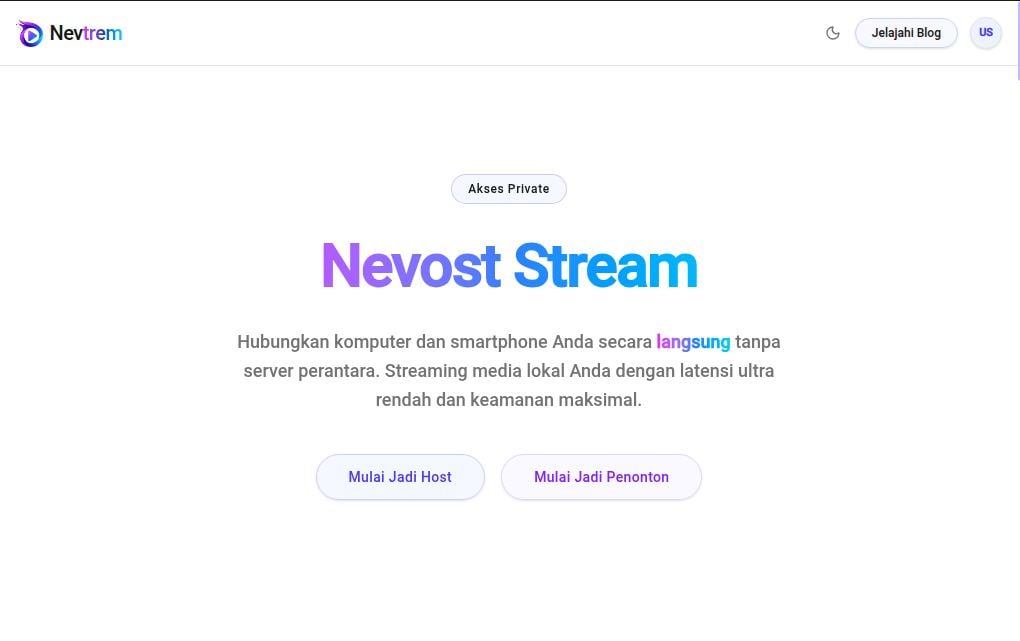
Introducing Nevtrem: Your Personal, Private Streaming Hub
Have you ever wanted to stream your personal media library, whether HD videos, music, or photo albums, directly from your computer to your smartphone or tablet without relying on cloud services? That is exactly what Nevtrem (Nevost Stream) is designed for. It connects your devices directly, offering ultra-low latency and maximum security for your local media.
What is Nevtrem?
Nevtrem is a web application that empowers you to stream various media files, from high-definition videos and music to entire photo galleries, directly from your computer (PC/Laptop) to other devices like smartphones or tablets. The magic behind Nevtrem is its direct browser-to-browser connection. This means your files are never uploaded or stored on third-party cloud servers, keeping everything private and within your control.
Why Choose Nevtrem?
I built Nevtrem to address common frustrations with traditional streaming and cloud storage. Here is why it stands out:
- Lag-Free & Bufferless Streaming: Data is sent directly between browsers, eliminating the delays often introduced by cloud servers. Enjoy your high-resolution visuals and audio without annoying lags or buffering.
- End-to-End Security: Your files stay on your computer. Since nothing is uploaded to cloud servers, your data remains entirely private and secure.
- Instant Access: Getting started is incredibly simple. Just scan a QR Code or enter a Room ID. There is no need for app installations, account creation, or lengthy registration processes.
- Free Data Usage on Local Networks: If your Host PC and Viewer device are connected to the same local WiFi network, streaming operates 100% offline. This means zero internet data usage, perfect for home viewing.
- Unlimited Capacity: Your streaming capacity is only limited by your computer’s storage. Feel free to stream files of any size without worrying about cloud storage quotas.
How It Works
Setting up your private stream with Nevtrem is straightforward:
- Open Nevtrem on your computer and select “Start as Host.”
- Choose the specific media folder you wish to share. Nevtrem will then provide you with a unique Room ID and Password.
- On your Viewer device, open Nevtrem and enter the provided Room ID and Password.
- Once connected, you can browse the shared folder and play videos, music, or view photos directly.
Key Features
Nevtrem is packed with features designed for a versatile and user-friendly streaming experience:
- Concurrent Multi-Streamer: In a shared room, multiple users can initiate their own live streams simultaneously. Viewers have the flexibility to choose which stream they want to watch.
- Watch Together Mode: Enjoy synchronized viewing with the Host or other streamers, perfect for shared movie nights.
- Independent Playback Mode: Prefer to watch at your own pace? Viewers can freely play, fast-forward, pause, or seek video duration without affecting others in the room.
- Live Chat: Communicate in real-time with the Host and other viewers using text and emojis, complete with a message ticker on the media player screen.
- HD Video & Audio Streaming: Stream high-resolution videos and music in real-time, directly from your PC.
- Photo Gallery Sharing: Easily open and navigate your photo galleries directly from the Viewer’s browser.
- Interactive File Explorer: Browse the contents of your shared folders from your computer just like you would with a file manager.
- Real-Time FPS Detector: Monitor the smoothness of your video playback with a frames-per-second indicator directly on the media player.
- Latency Monitor: Keep an eye on your connection quality and response time between Viewer and Host devices.
- Double-Tap Seek: Quickly navigate through your videos by double-tapping the left or right side of the player to rewind or fast-forward 10 seconds.
- Auto-Hide Controls & Fullscreen: Player controls automatically hide for an immersive, full-screen viewing experience.
- Profile Customization: Users can set their name, profile picture and bio, which are displayed in the user list, streamer information and Live Chat.
- Room Password Security: Each room can be secured with a password chosen by the Host, ensuring only invited guests can join.
- Full Room Owner Control: As the Host, you can monitor connected devices and close or stop specific broadcasts as needed.
- Cross-Network Access: Nevtrem can even be used across different internet networks with the help of TURN Server support.
Nevtrem vs. Cloud Streaming
Here is a quick comparison to highlight Nevtrem’s advantages:
| Feature | Nevtrem | Cloud Streaming |
|---|---|---|
| Setup Process | Instant; select folder, connect devices. | Files must be uploaded first. |
| Storage Capacity | Limited only by your computer’s storage. | Depends on cloud quota or VPS capacity. |
| Privacy | Files sent directly between devices. | Files stored on third-party servers. |
| Cost | Free. | May require storage or server costs. |
| Configuration | Share Room ID or scan QR Code. | May require server config, domain, SSL, apps. |
Streaming Across Different Networks
While Nevtrem excels in local networks, direct connections across different internet networks can sometimes be hindered by network or operator restrictions. To overcome this, Nevtrem supports TURN Servers, which act as a bridge to relay media streams between the Host and Viewer.
TURN credentials consist of:
- TURN Server URL
- Username
- Credential / Password
This data can be entered via the Settings page on either the Host or Viewer interface and is stored locally in your browser.
Streaming Tips for the Best Experience
To ensure the smoothest streaming experience with Nevtrem:
- Use 5 GHz WiFi: For higher bandwidth and lower latency, connect to a 5 GHz WiFi network.
- Wired Host Connection: Connect your Host PC using a LAN cable for the most stable connection.
- Optimal Codecs: Use MP4 files with H.264 (AVC) video and AAC audio codecs for broader browser compatibility.
- Proximity to Router: Keep your devices close to the WiFi router for a stronger, more reliable signal.
- Modern Browser: Always use a modern, up-to-date browser such as Google Chrome, Microsoft Edge, or Safari.
Profile Privacy
Your profile information (name, picture, bio) is stored locally in your browser. When you join a room, this data is sent directly to connected devices and is not stored on any Nevtrem server, ensuring your personal details remain private.
About the Developer
Nevtrem was independently developed and fully designed by Ahmad Naufal Putra Andyan. My goal was to create a personal media streaming solution that is free, fast, secure and completely ad-free.
Tag: